


One person runs Weblytica, and most of that work now happens inside a single Chrome extension. That person tracks the hours, sends the invoices, remembers the follow-ups, and watches the automations. That person is me.
For years I did all of it across six different apps. A timer here. Then a rolodex somewhere else. Somehow a spreadsheet was doing work no spreadsheet should ever do. Each one cost money. None of them talked to each other.
So I built my own Chrome extension instead of renting more software. It lives in a panel inside the browser, right next to whatever I am already working on.
You cannot buy this thing. It is not a product. That is on purpose, because this is a case study, not a sales page.
The point is to show you what one person can build now, with no team and no funding. Most business owners have no idea this is even on the table anymore. It is.
This is a series that covers all four sections of the Weblytica Task Manager: the Clients tab, the Make.com tab, the Expenses tab, and the global features running underneath all of them.
The Setup Behind All of It
Every part of this Chrome extension sits on the same foundation. Five things stay true no matter which tab you open.
The Chrome extension lives in the side panel. Not a popup that vanishes the second you click somewhere else. The panel stays open beside your work. Click the toolbar icon and it returns to the exact screen you were on, even after a restart. Google added the side panel feature for extensions a couple of years ago, and it changed what a browser tool can be.
You sign in with Google, and your data lives in the cloud. Everything sits in Firebase, which is a Google database. Your clients, hours, and notes follow you to every computer you use. Reinstall Chrome and nothing is lost. The panel also keeps a local copy, so it loads instantly when your internet gets weird for a minute.
A running timer is impossible to forget. Three separate cues make sure of it. An orange bar slides down on every tab with the client name and a live clock. The toolbar icon gets a yellow badge you can see even when the panel is closed. Right click that icon and you can stop the timer without opening anything.
The icon knows where you want to go. Click it and it makes a decision. If automation alerts are waiting, it opens to those. If a timer is running, it opens to your hours. Otherwise it takes you back where you left off.
A build number sits in the header. A small chip showing the version. Boring, but it is the fastest way to know an update actually installed.
Now the Clients tab.
Why This Tab Exists
Running a business alone means being four departments at once.
Sales remembers who needs a follow up. Operations knows what you did last Tuesday. Accounting turns that into an invoice. The front desk keeps track of who everyone is.
All four of those people are you. You have about one brain between them.
So this Chrome extension holds those four jobs in one place. Four sub tabs, one for each.
Clients: The Master List
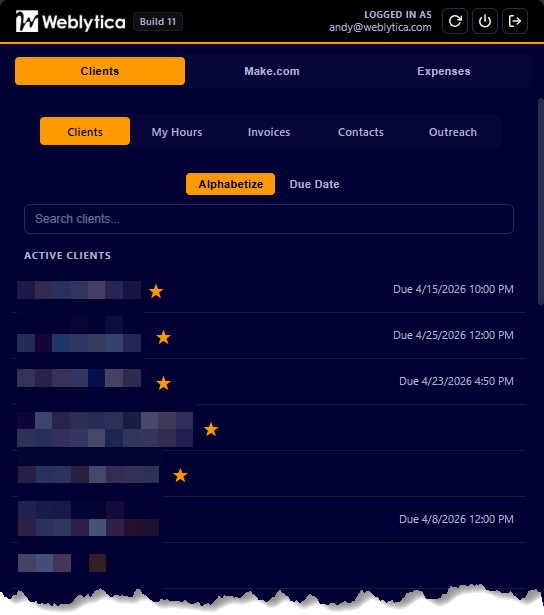
This is the list of everyone you work with, and it makes the rest of the tab work.
Each client is filed under their email domain. Not their name. Just the part after the @ sign, like acmecorp.com. Every hour you track, every invoice, and every note hangs off that one address.
That sounds like a small technical choice. It is not. Because of it, nothing gets lost when you type "Acme Corp" one day and "ACME Corporation" the next. The domain does not care how you type. The domain is the domain.
Star a client and they move to the top as active. The star flips the instant you click. No waiting, no wondering if it worked.
Each client can also have a due date, set right on their row. The list sorts two ways. First, alphabetical, with active clients on top. Second, by due date, which buckets everyone into Overdue, Today, This Week, and so on. That second view is the one I open on Monday when I want to know how much trouble I am in.
There is a search box that looks at both names and domains, because scrolling is for people with fewer clients than you plan to have.
Inside a Client Card
Click a client and their card opens with four small tabs inside:
Feed shows every note and meeting for that client, newest first. Each note has a checkbox so you can mark it done.
Notes lets you add a quick note and edit old ones later. That helps, since notes written in a hurry rarely make sense the next week.
Meetings stores the start and end time, works out how long it ran, and keeps the invite list and the video link. Past, future, and cancelled meetings each get their own color.
Edit Details holds two fields that quietly run all the money math: the hourly price and the FreshBooks client ID. Fill these in once. Skip them and later you will open a beautiful revenue report full of zeros, wondering what you did to deserve this.
My Hours: The Time Tracker
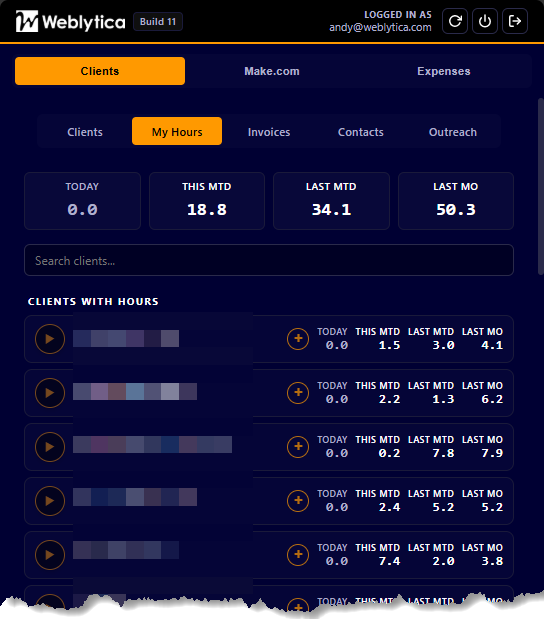
Every client row has a play button. Press it and the clock starts.
Press play on a different client and the first timer stops on its own. Only one can run at a time, because that rule is enforced on the server. Your laptop and your desktop are not allowed to gang up on you and double count.
While a timer runs, a small orange dot orbits the button once per second like a tiny comet. It does nothing useful. I regret nothing. If you are going to stare at a Chrome extension for six hours a day, it should at least have a comet.
Each row also has a box where you type what you are working on. Type it before you hit play and it fills in automatically. Type it while the clock runs and it saves as you go.
That box finishes your sentence for you, based on task names you have used before. Press Enter to accept it. This matters more than it sounds like it should, because your reports and invoices group tasks by name. Type "client onboarding" one week and "Client Onboarding" the next, and your invoice shows two separate line items. Then you look like someone who bills by vibes.
What the Chrome Extension Tracks Per Client
Four numbers sit on every client row. Today. This month so far. Last month up to the same day. And last month's total.
That third number is the useful one. It compares the same day of the month, so you can see if you are ahead or behind without doing math in your head. The numbers stay grey at zero and turn white when there is real time on them, so busy clients stand out.
Hover over any of those numbers and the hours flip into dollars, using that client's hourly rate.
One exception, on purpose. Any time you label RETAINER still counts as hours, but never shows up in the dollar figures. Flat fee work should not inflate what you think you earned. Otherwise you feel rich right up until the invoice disagrees.
The first time you press play on a client, their row slides up into a section called Clients with Hours. Your real workload literally rises to the top of the panel. It is the closest a time tracker gets to a dramatic entrance.
Fixing Time You Forgot to Track
Open a client and you see their full history, grouped by task name with totals. Every entry shows the date, how long it ran, and the time range. You can fix the start time, end time, or name right there. You can delete it if it was a mistake.
Each task group also has a small play button that starts a fresh timer with that same task name already filled in. That is the most used button in the whole Chrome extension.
There is a plus button for adding time by hand, too, for all the sessions you forgot to track. Which is all of us. Constantly.
Invoices: Turning Hours Into Money
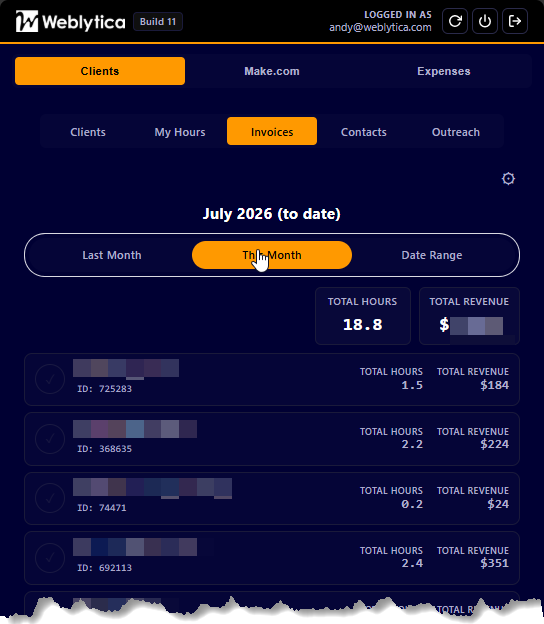
A slider at the top picks the time period. Last month is the default. This month gives you the month so far. Or pick a date range, and the box opens up to show start and end date pickers. Both dates count, so the last day of your range is actually included.
Below that, one row per client shows total hours and total revenue. RETAINER stays out of the dollar column here too. Each client's FreshBooks ID sits under their name, so a client you forgot to connect is obvious right away instead of quietly failing later.
Click a row and it opens into the task breakdown, each task with its hours. Those are your invoice line items, already written for you.
One Click From Hours to Draft Invoice
Then there is the checkmark button, and this is the part that saves a whole evening.
Click it. It turns amber while the Chrome extension talks to FreshBooks and builds a draft invoice. One line per task, with your rate and hours. RETAINER lines come through at zero dollars, so the work still shows up without being charged for. When the draft is ready, the invoice opens in a new tab and the checkmark turns green.
You press Send yourself, over in FreshBooks. That is a choice, not a missing feature. Automating all the way to "money demanded from a real human being" is the sort of thing you only need to get wrong once.
Green checkmarks are saved per client and per time period, so last month's finished invoices do not bleed into this month's list.
Connecting FreshBooks takes a few minutes behind the gear icon. You paste in two keys from your FreshBooks account, copy one web address back over to them, and click connect. After that it stays connected on its own.
Contacts and Outreach: The Follow Up Queue
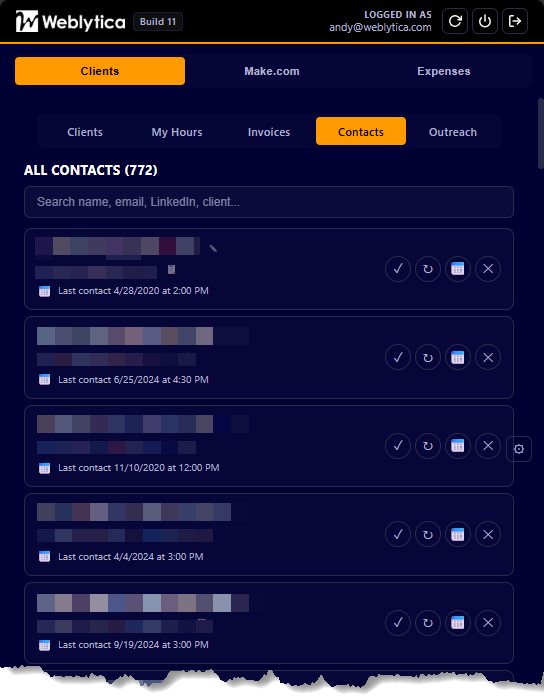
The rolodex, minus the part where it sits on your desk collecting dust and one dried out rubber band.
Outreach is your daily list. It shows the contacts you are due to reach out to, so instead of lying awake wondering who you forgot, you get a list.
Each one gives you three choices. Send fires off your automation with that person's history attached and resets the clock. Defer pushes them out three months. Or retire the contact entirely.
Email Fetch pulls that person's recent Gmail history into the card. Then you see their emails and meetings side by side, in order, with subjects and links. You get the full story before you reach out, instead of opening four browser tabs to rebuild a relationship from scratch.
Contacts lists everyone alphabetically, and you can edit any detail right in the row. Change someone's email and their old address stays on file, so their old history still shows up. People change jobs. Their history should not disappear because their email did.
What This Chrome Extension Should Tell You
Four sub tabs, one loop. The list knows who exists. The timer knows what you did. Invoices turn that into a draft. Outreach makes sure people do not forget you exist.
None of this is magic. A Chrome extension is just a browser panel, a Google database, and a few connections to tools I already paid for.
That is the part worth sitting with. Five years ago this would have been a real software project with a real budget. Now one person can build a Chrome extension shaped exactly like their own work, instead of paying every month for five tools that each do 70 percent of the job.
You probably do not need this exact Chrome extension. Still, you almost certainly have your own version of the same problem, and it is the one you have quietly worked around for years.
Want help scoping something like this? Start with our automation co-building sessions.
Next in this series: the Make.com tab, where the panel stops managing clients and starts babysitting automations.